
Built for speed
Responsive navigation. Less waiting.
FAST. LIGHTWEIGHT. SIMPLE.
A fast, lightweight player that makes connecting to your portal simple—and managing it effortless.
Available on Android TV and mobile.
More platforms planned.
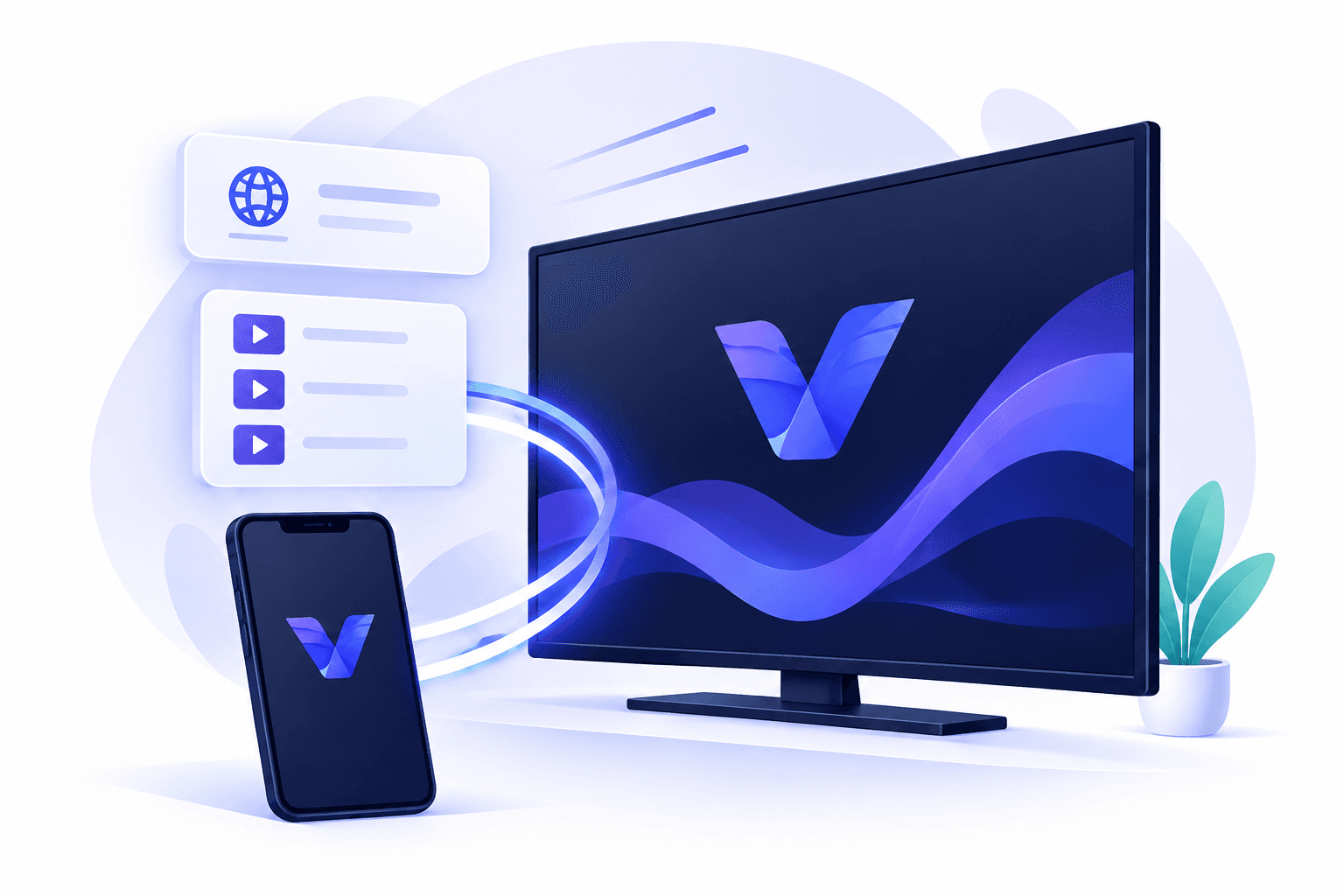
Responsive navigation. Less waiting.
A focused player without the clutter.
Simple setup, with QR guidance on TV.
Add, edit, and organize in one place.
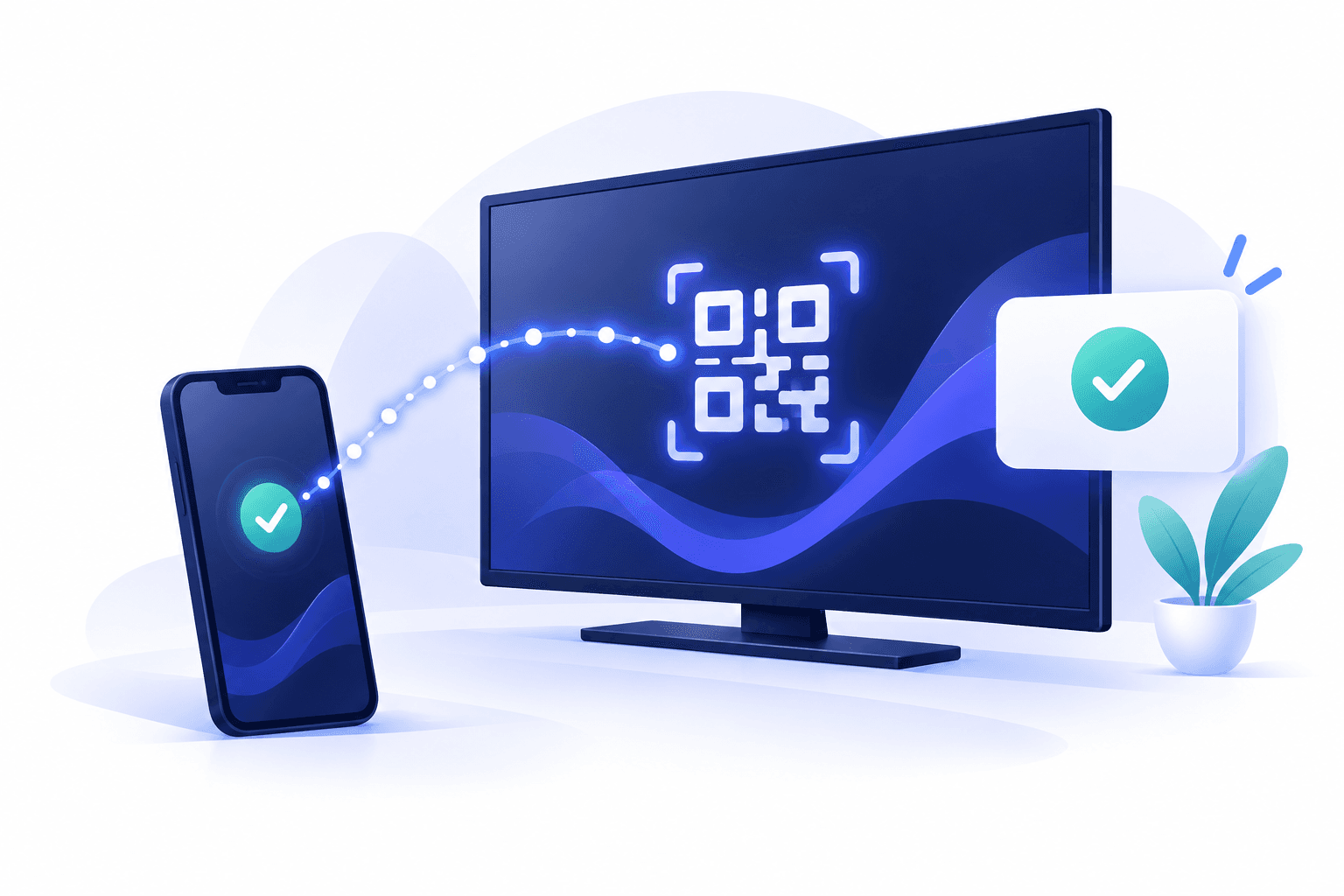
Scan the QR on your TV to manage portal details from your phone.
Explore portal setup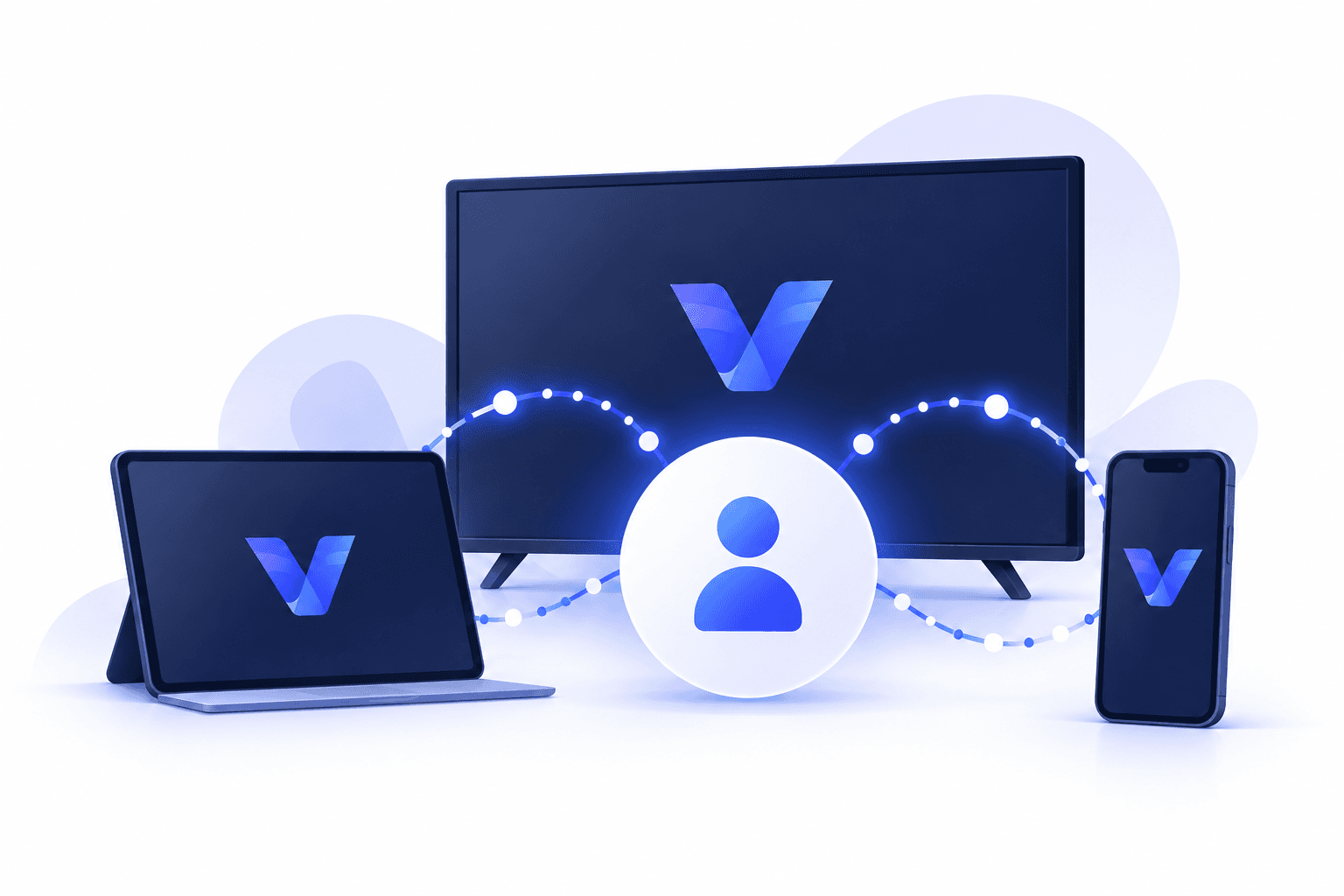
Manage licenses, check validity, and transfer eligible licenses.
Get to know your accountFollow activation when the app asks.
Open the official app on your supported device.
Enter your provider’s details, using QR setup on TV.
Choose your portal and follow any activation prompts.
Choose a device license and manage it from your account.
Vrox TV is a player. Your portal, channels, and content come from your service provider.
Vrox TV is a player. Your portal, channels, content subscription, and credentials come from your service provider.
Vrox TV is currently available for Android TV, Android set-top boxes, and Android mobile devices. More platforms are planned.
On TV, open portal management and scan the QR code with your phone to add your provider’s details. On mobile, enter the details directly in the app. Choose your saved portal to connect and follow activation if prompted.
Yes, when the license is eligible for transfer. Sign in to check the next available transfer date and choose the license to move. Transferring disconnects the previous device’s paid access.